All toolsAnalytics
Save your X Analytics history.
Save the UTC days loaded in your X Analytics tab to your browser. Compare totals with the previous period when both periods have complete readings.
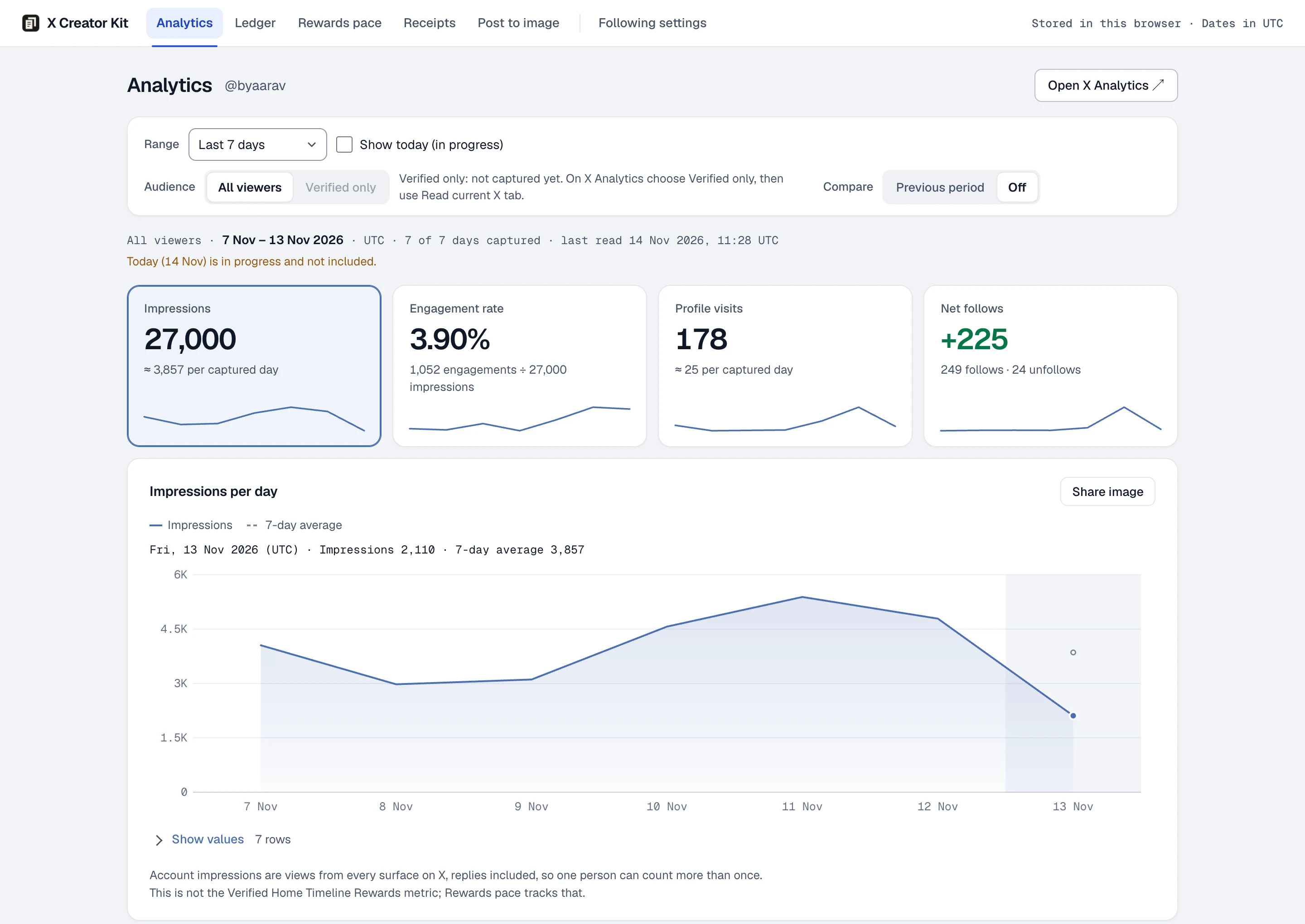
Inside Analytics.
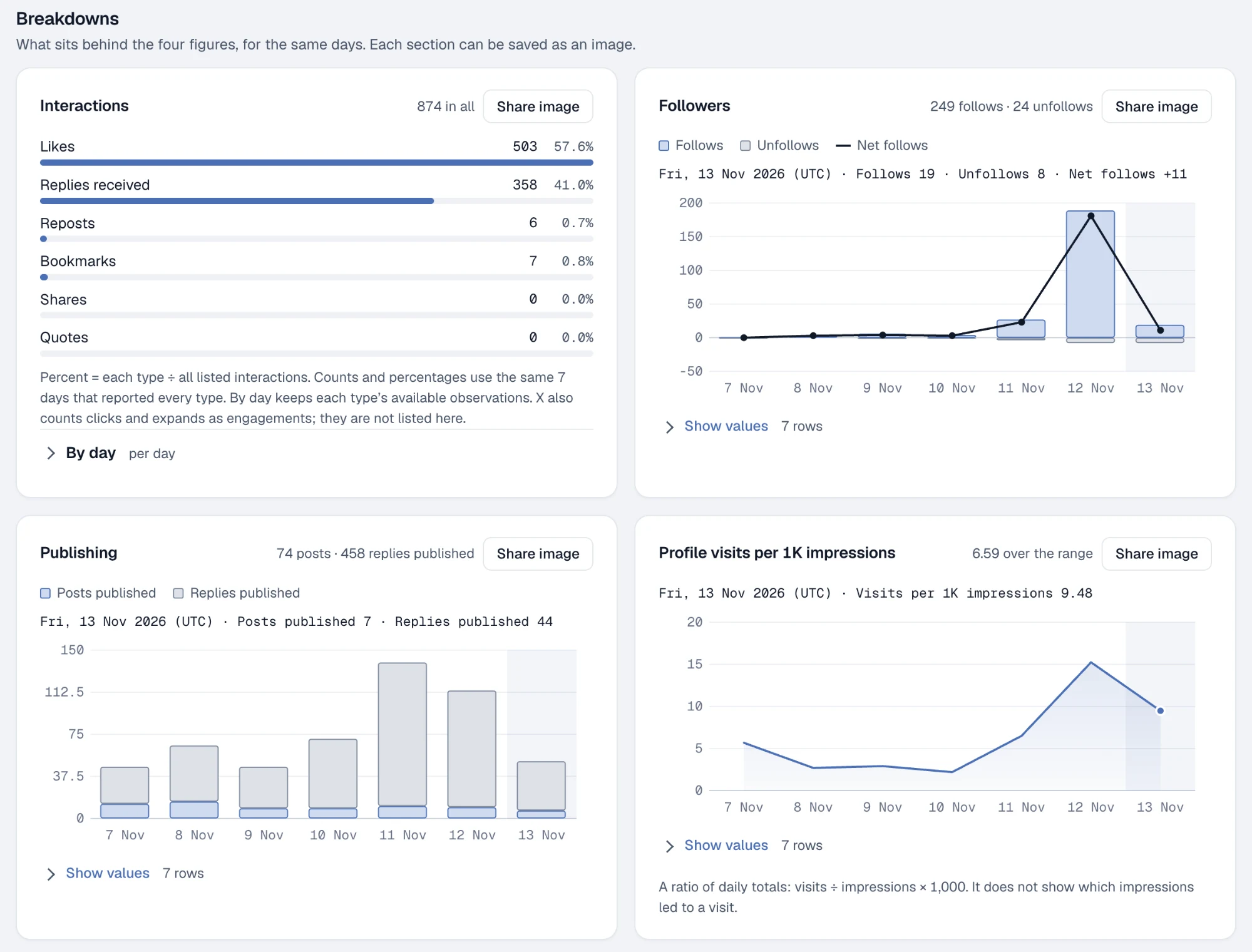
From X Analytics to your history.
Open X Analytics
Open your account analytics on X and choose a range there, such as the last 28 or 90 days.
Choose Read current X tab
From the extension menu. The kit reads the days that page has loaded and saves them in your browser.
Pick any range
Choose 7 to 365 days, every captured day or your own UTC dates. Read a longer range on X to add more history.
X Analytics questions.
How far back can I save X Analytics?
Read current X tab saves the dates X has loaded. To add more, choose a longer range on X and read it again. You can add older days only while X still shows them.
What can I export from Analytics?
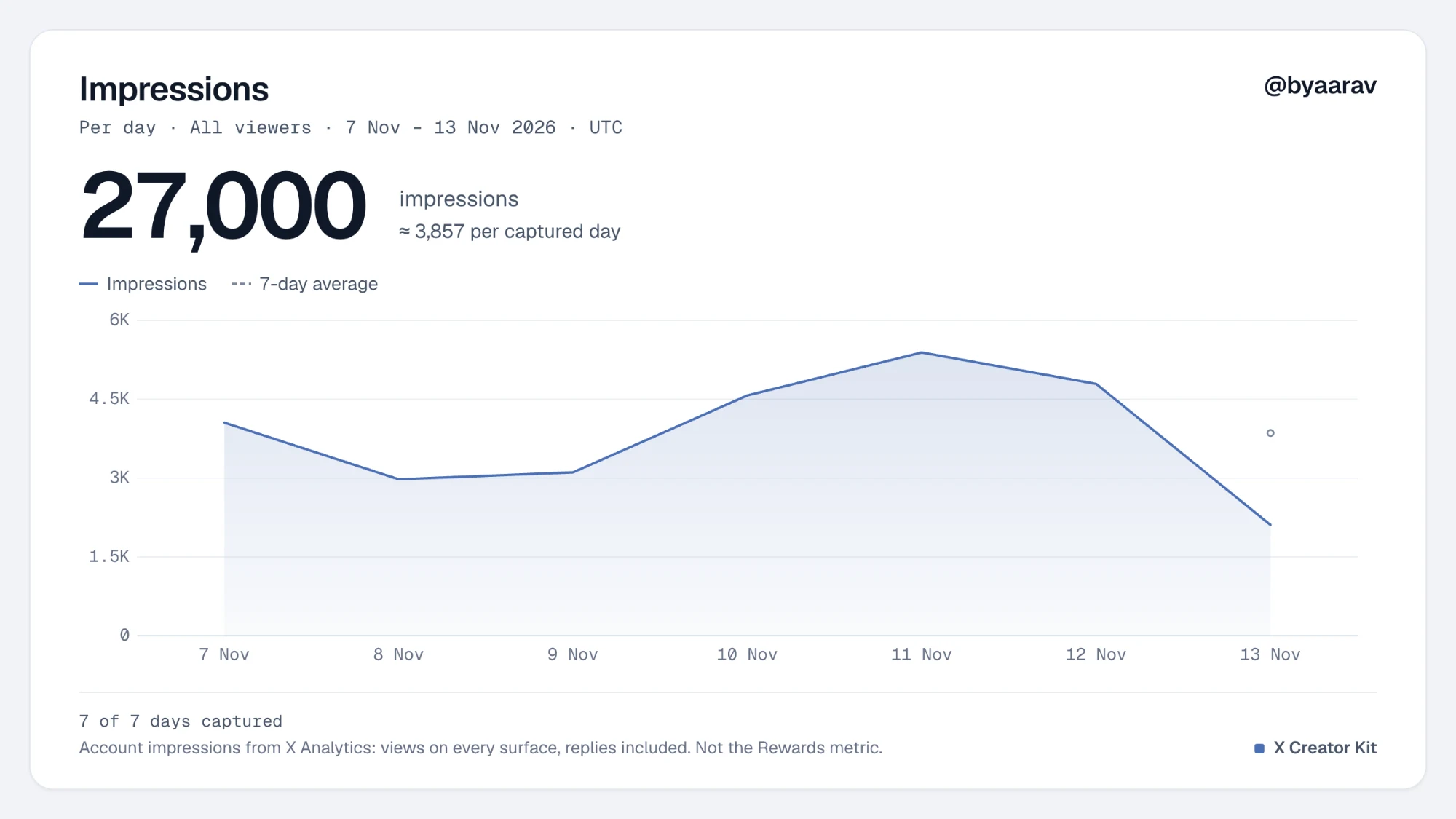
Choose Share image on a chart to copy or download a PNG. For a PNG that summarizes a whole period, use the Ledger summary card.
Why is today left out?
X Analytics groups by UTC day, and today is still in progress. Tick Show today to include it, marked as in progress.
What does Verified only show?
The figures X Analytics shows when you filter to verified viewers. Read that view on X once and it is kept as its own history.
Are these impressions the Rewards figure?
No. These are account impressions from X Analytics, replies included. The Rewards figure (verified Home Timeline impressions over 90 days) has its own Rewards pace page.
What happens to days I did not read?
They show as missing, with the count of captured days beside every range. Comparisons only use complete periods.
More from the kit.
Seven tools in one free Chrome extension.